Configure Custom Attributes
Last updated: August 3, 2026
Custom Attributes allows admins to collect and manage additional worker information that is not part of the standard profile fields asked by Zeal.
Accessing the Attributes Page
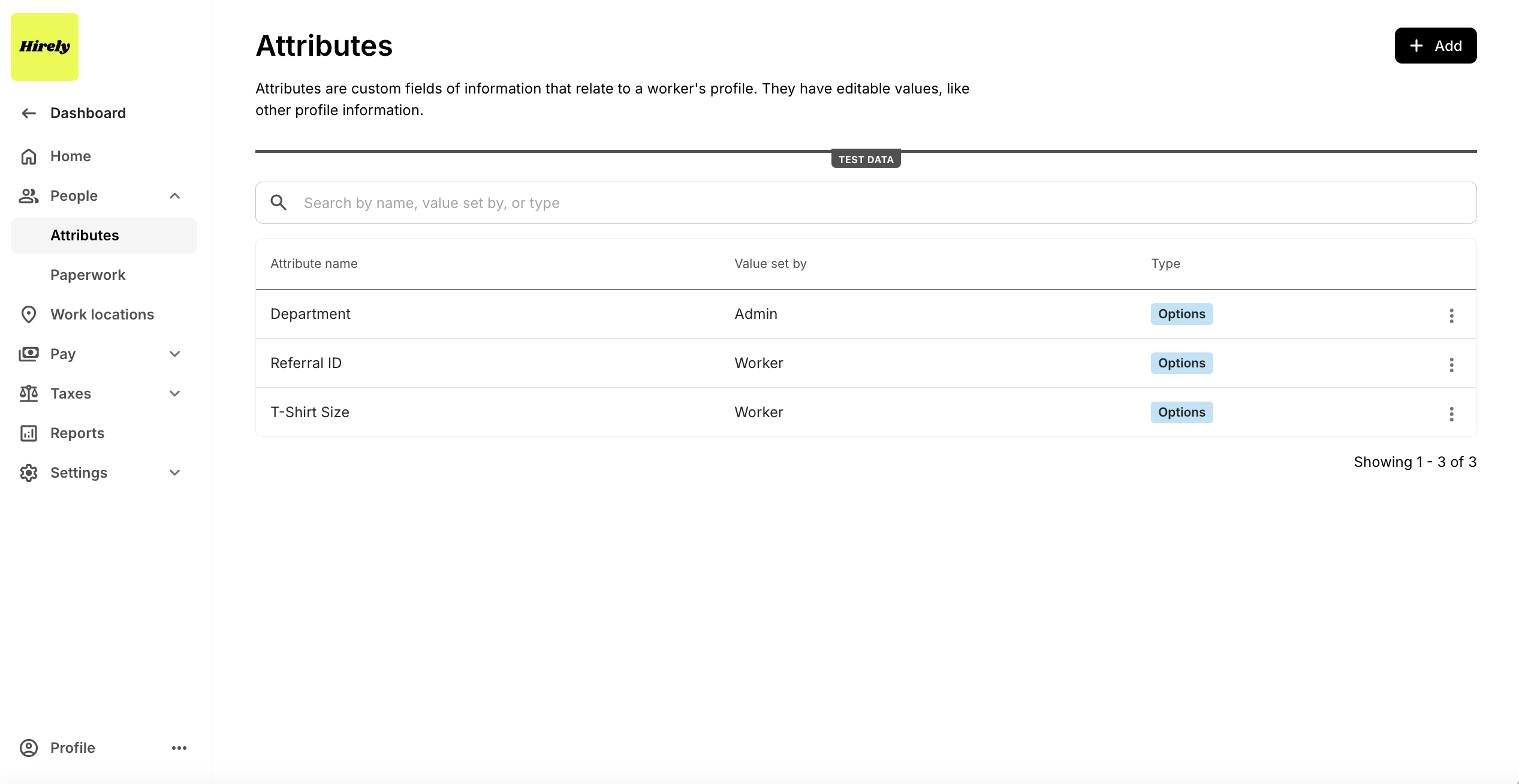
Within the Zeal dashboard, Admins can create, edit, and manage attributes from the Attributes Page (People -> Attributes) This section displays all configured attributes and provides the ability to:
Search attributes by name, label, or type.
Edit existing attributes.
Add new custom attributes.
Adding a New Attribute
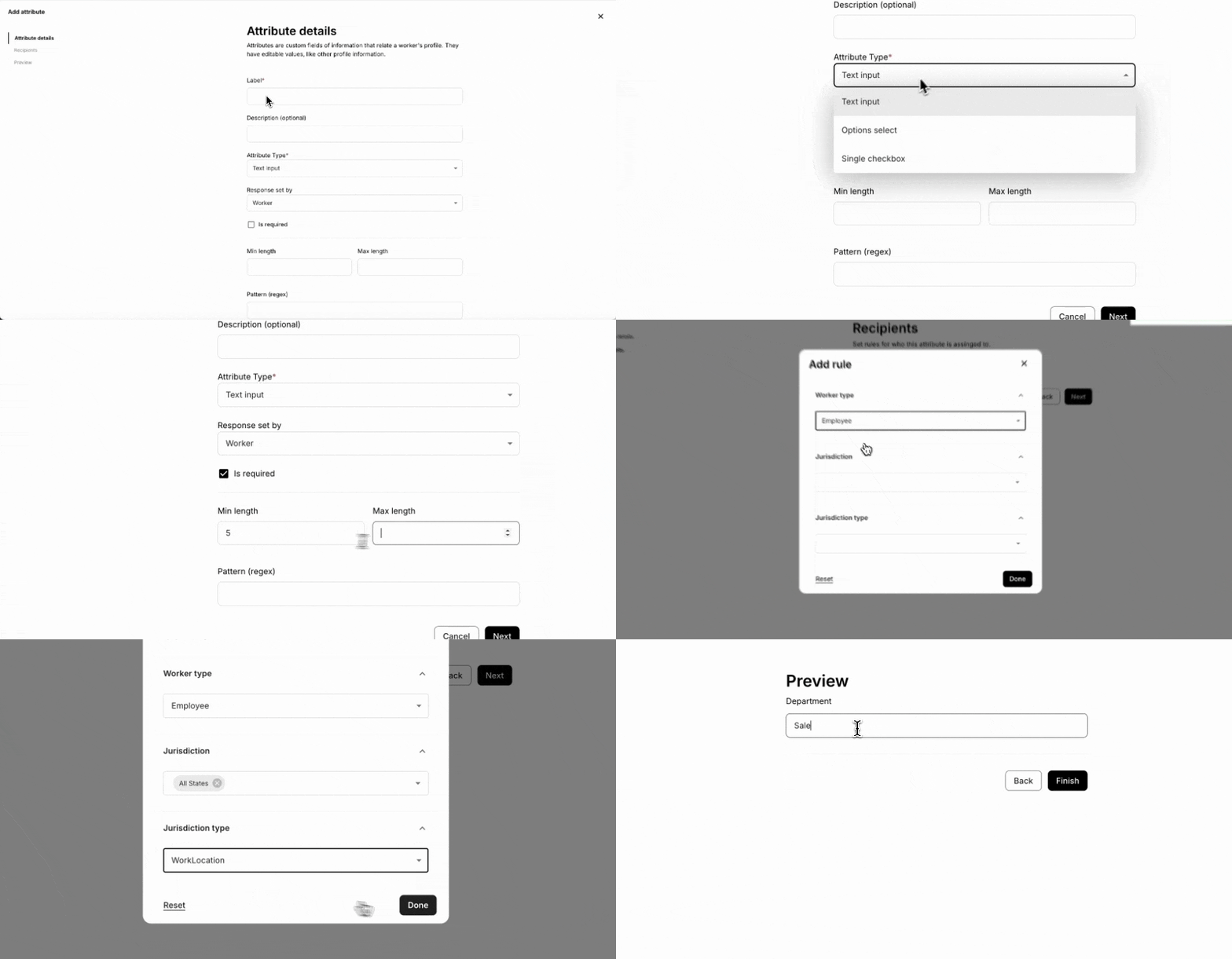
When adding an attribute, you must complete a step-by-step flow, which includes:
1. Attribute Details
Label – Name of the attribute.
Description (Optional) – Additional context about the attribute.
Attribute Type – Defines how the worker/admin interacts with the attribute (e.g., text input, dropdown options).
Response Set By – Determines who fills in the attribute:
Admin – Only admins can view and set this attribute for workers.
Worker – Workers will be asked this question during their onboarding flow if they fall under the assigned recipient ruleset.
2. Recipient Ruleset
Admins define which workers should be assigned this attribute by setting filters such as:
Worker Type (e.g., employee, contractor).
Jurisdiction (specific locations).
Jurisdiction Type (e.g., work location, residency).
Workers that match the recipient rules will either see this attribute in onboarding (if set by the worker) or have it set by an admin.
3. Preview & Confirmation
Before finalizing, admins can preview the attribute setup, including sample worker responses if applicable.
Admin-set vs Worker-set Attributes
Admin-Set Attributes: Values of attributes must be set manually by the admin onto a worker. These values can be set in the Profile Page -> Custom Attributes section of the worker
Worker-Set Attributes: Workers are prompted to enter responses during onboarding based on recipient rules.
Worker-set Attributes in Worker Onboarding
Worker-set attributes will show as a Survey in a worker's onboarding, if the worker falls under the Recipient Rules. You can choose to include the Survey page when you generate an onboarding link.
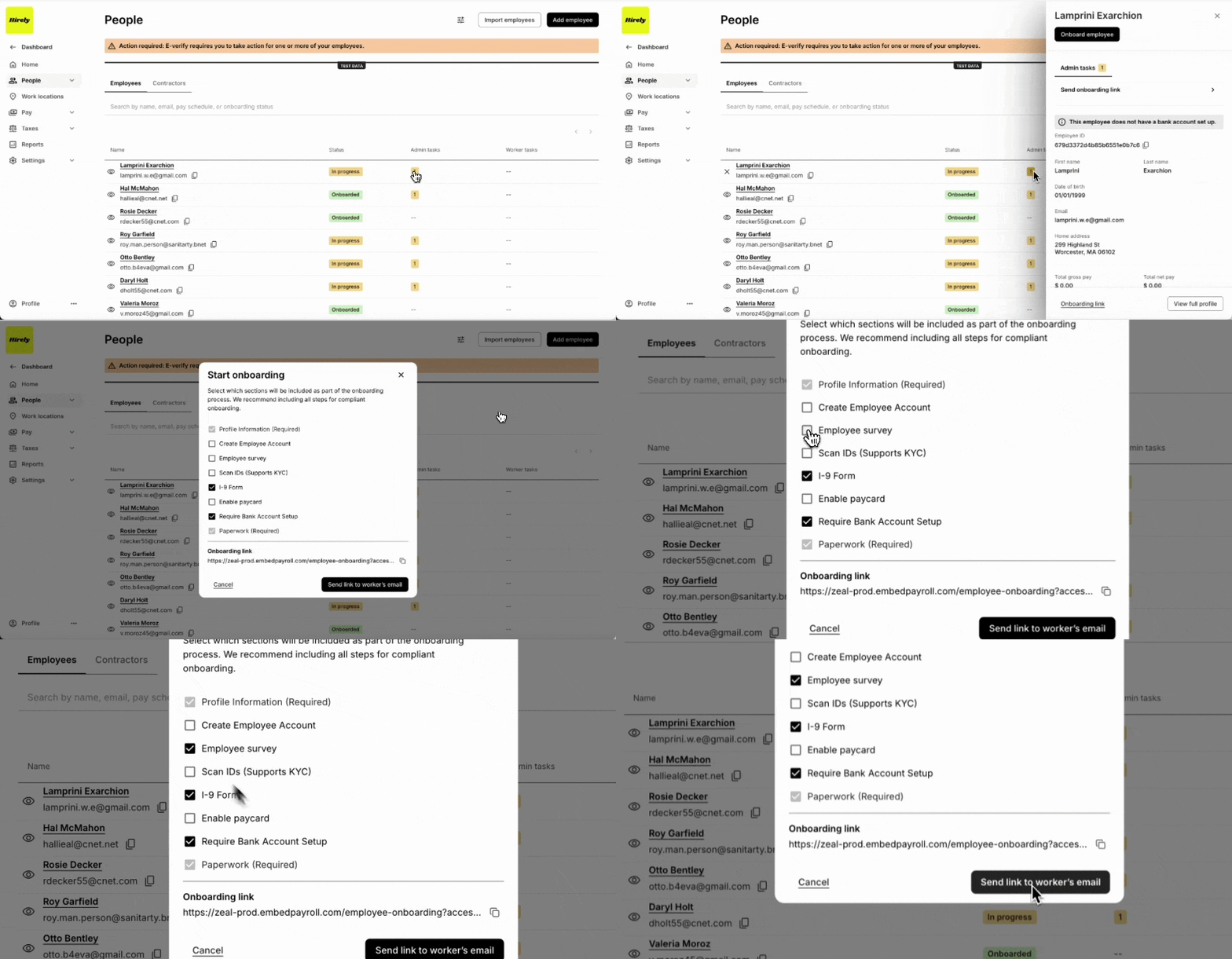
The worker is then prompted to supply the Survey information.
Viewing/Updating Custom Attributes
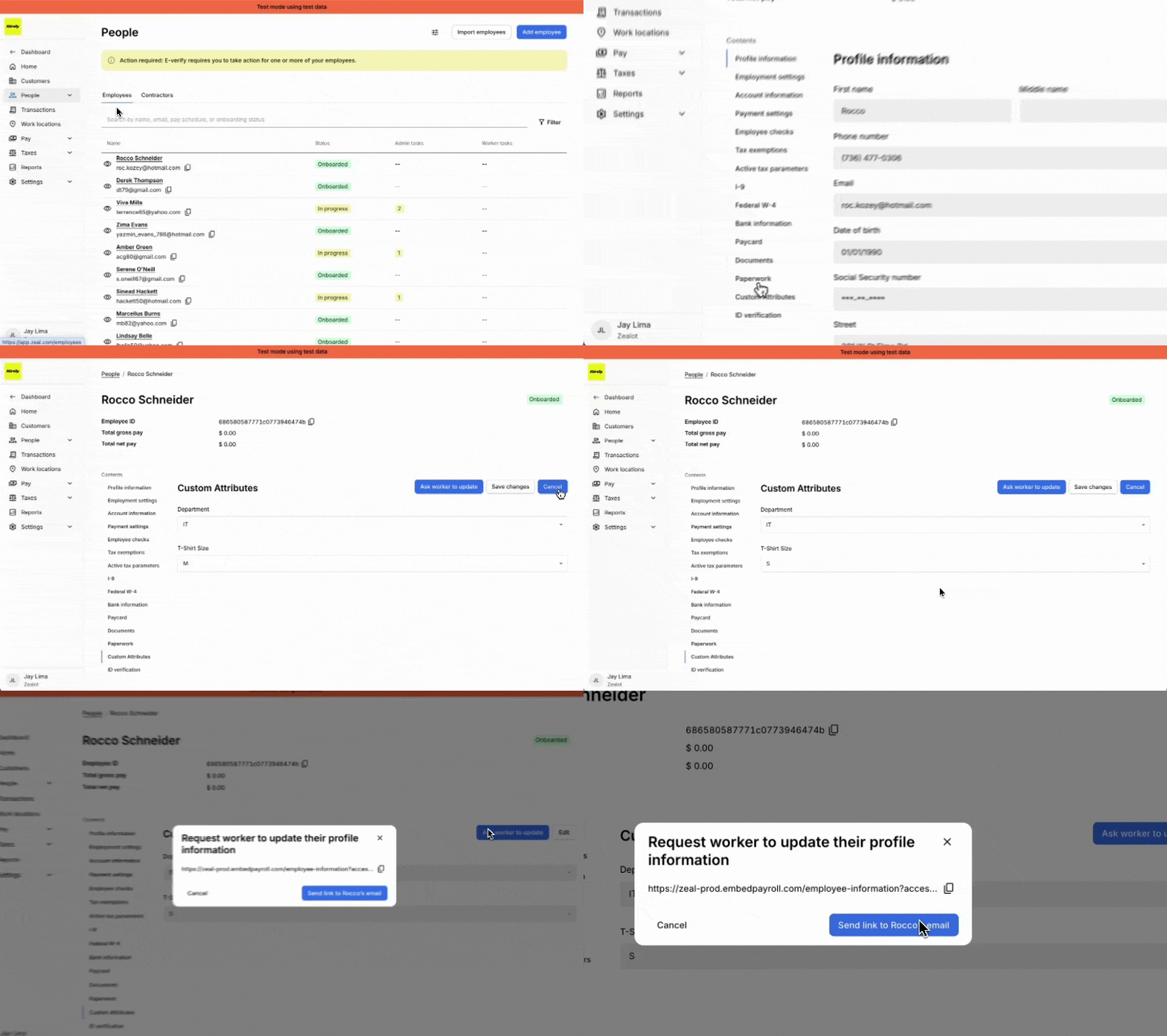
Custom Attributes associated with the worker can be viewed in applicable worker's Profile (People -> Select Worker -> Custom Attributes tab). Admins are able to validate the information, edit the information, and ask the worker to update the Attributes.
Custom Attributes in Reports
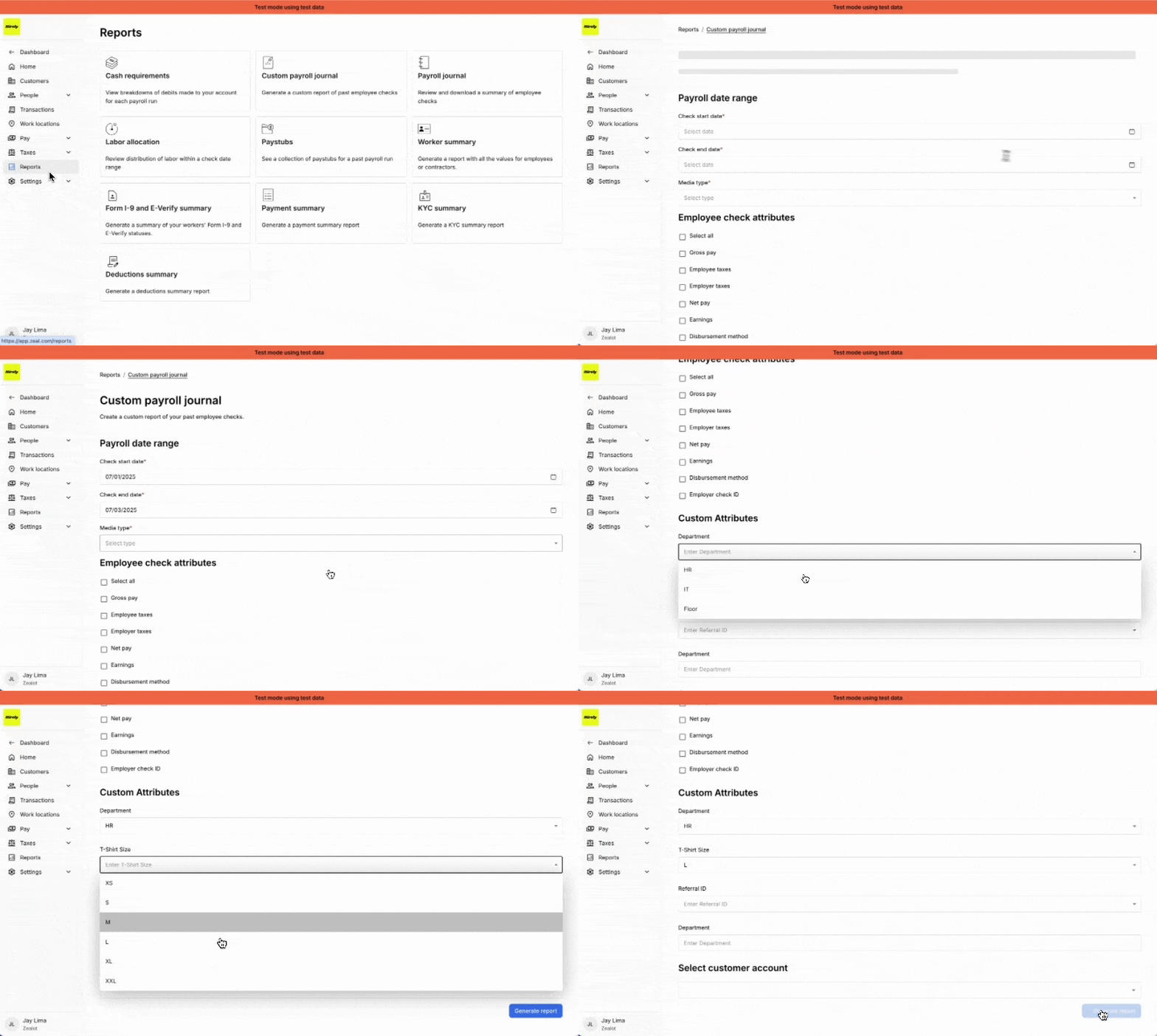
Admins are able to use Custom Attributes as part of Reports generated in the Reports tab.
Zeal is a financial technology company, not an FDIC insured depository institution. Banking services provided by Bangor Savings Bank, Member FDIC. FDIC insurance coverage protects against the failure of an FDIC insured depository institution. Pass-through FDIC insurance coverage is subject to certain conditions.
Mastercard® Debit Card is issued by Bangor Savings Bank, Member FDIC, pursuant to license by Mastercard International Incorporated. Mastercard is a registered trademark, and the circle design is a trademark of Mastercard International Incorporated. Spend anywhere Mastercard is accepted.